

Train a labeling assistant
General-purpose AI models know everyday objects, but not your parts or your defects. A labeling assistant is a model trained on the boxes you have already drawn, with one job: to draw them on the rest of the images for you. In this guide you train one on a few packs of biscuits and let it label a pack it has never seen.
What you will learn
- When a labeling assistant pays off
- How to train one
- How to use it from «Auto Labeling»
Before you start
You need an object detection or text recognition dataset with some images labeled and reviewed: at least 10 boxes of each tag. Training spends tokens.
1. Open the assistant's setup
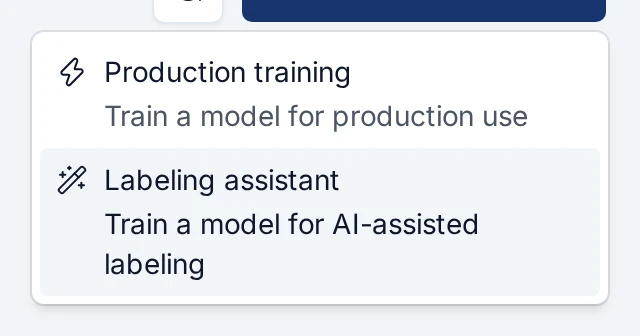
Open the dataset, go to the «Models» tab, click «Train a new model» and choose «Labeling assistant». It is offered in object detection and text recognition datasets.
2. Start the setup
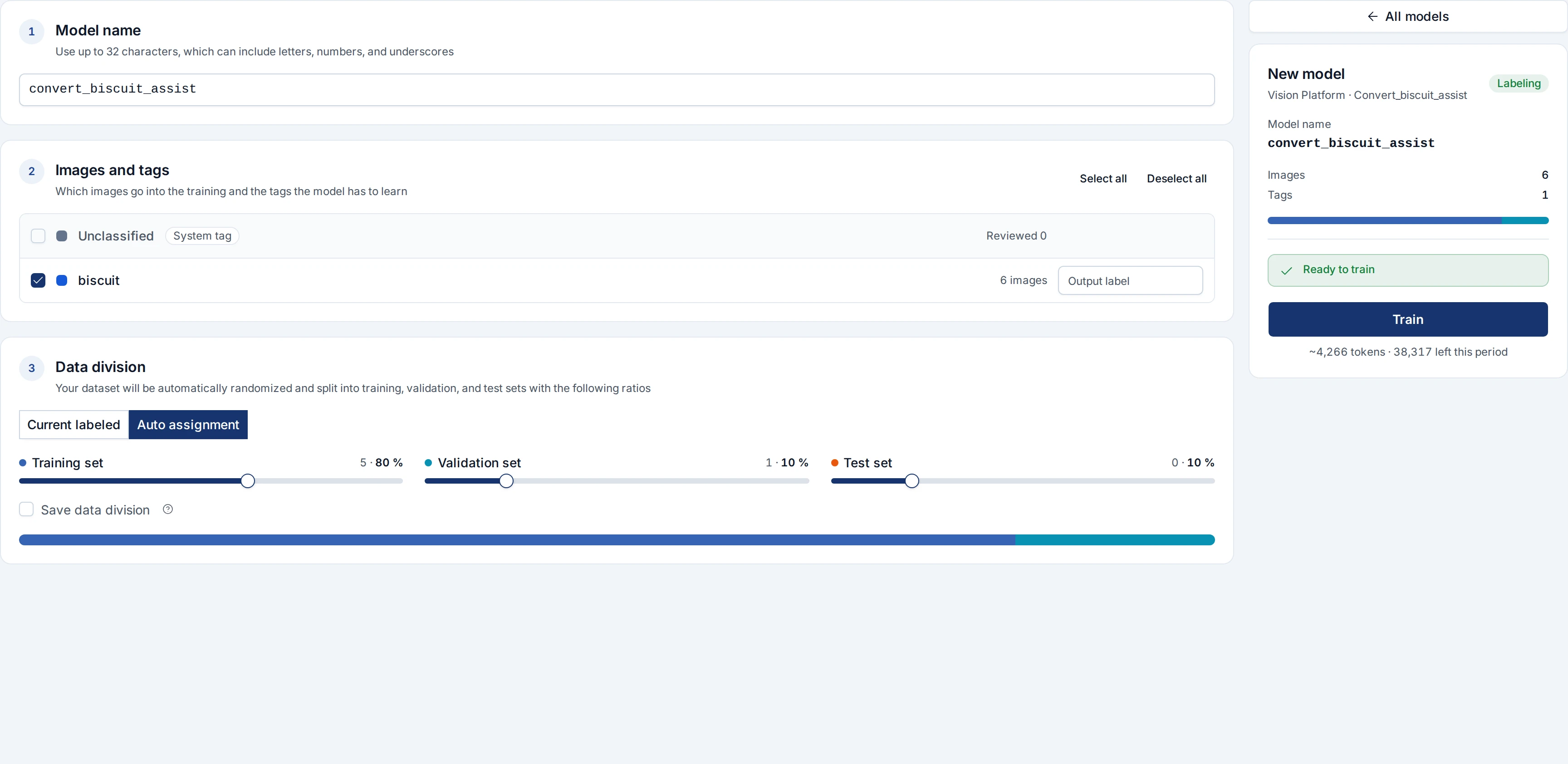
Click «Labeling assistant». The setup is shorter than that of a production model: a name, the images and tags it learns from, and the data division. There is no training configuration: the platform chooses the model and how long it trains.
3. Name it
Type a name in «Model name»; it proposes the name of the dataset. It is the name you will choose in «Auto Labeling», so make it say what the assistant labels.
4. Check what it learns from
«Images and tags» counts the images it learns from: only the reviewed ones, with their boxes. Here six packs are labeled and reviewed; the two still pending are left out, and they are the ones the assistant will label. «Data division» keeps a few images apart to check it.

5. Check the summary
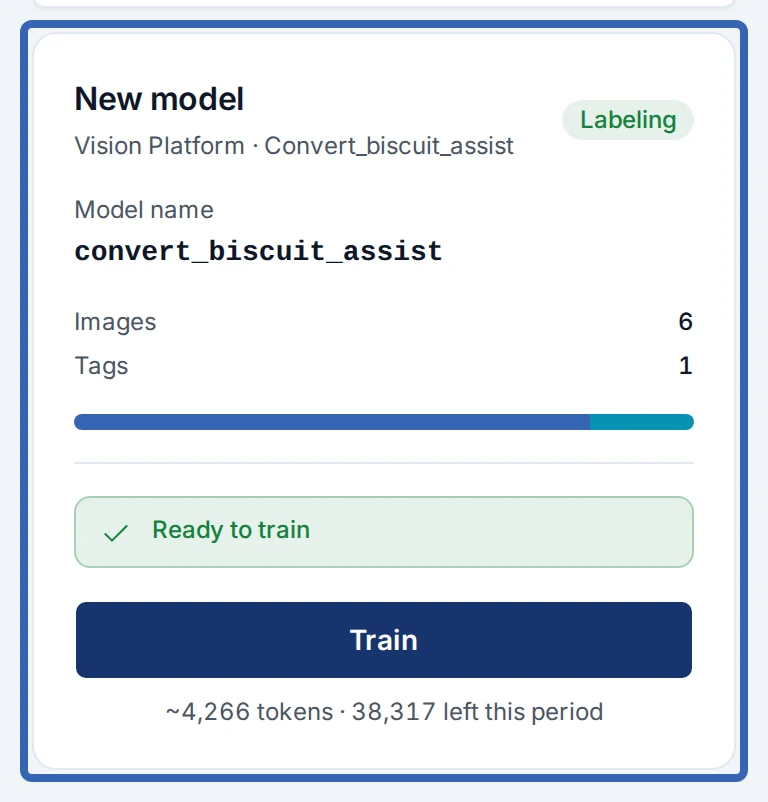
The card on the right says «Labeling» and shows the images, the tags and the price in tokens. An assistant always trains the same fixed time.
6. Train it
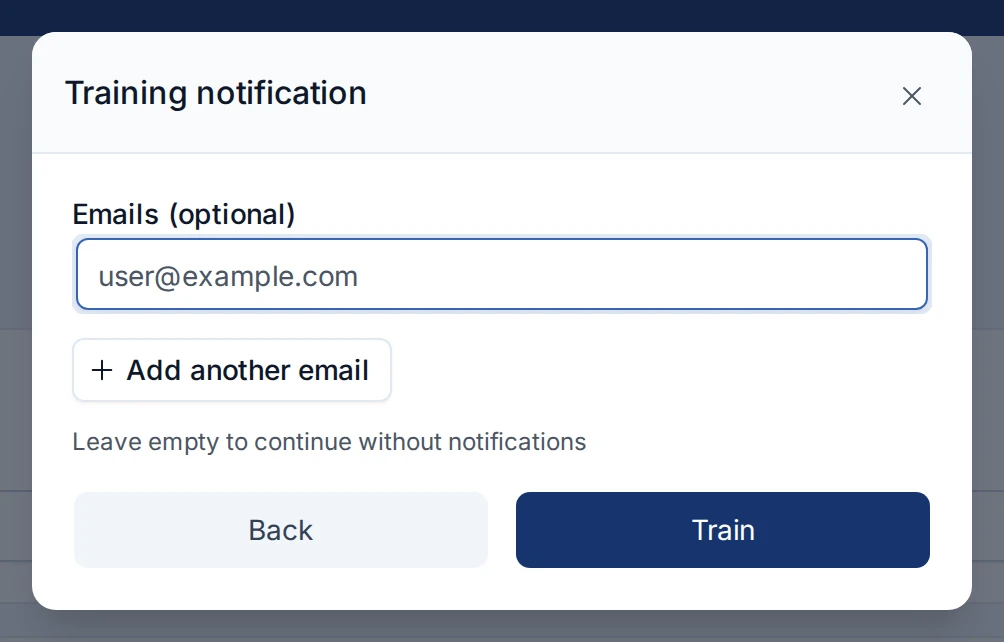
Click «Train». «Training notification» offers to email you when it ends: type an address, add more with «Add another email», or leave it empty to continue without notifications. «Back» returns to the setup.
7. Start it
Click «Train» in the dialog to launch the training. The assistant appears in the list of models and trains for about half an hour; its card shows its state, and when it says «Finished», the assistant is ready to label. The video goes on with an assistant trained earlier on the same images.
8. Open a pack it has not seen
When the training has finished, click «Labeling» and open an image that has no boxes yet. Choose «Auto Labeling», the sparkles in the toolbar.
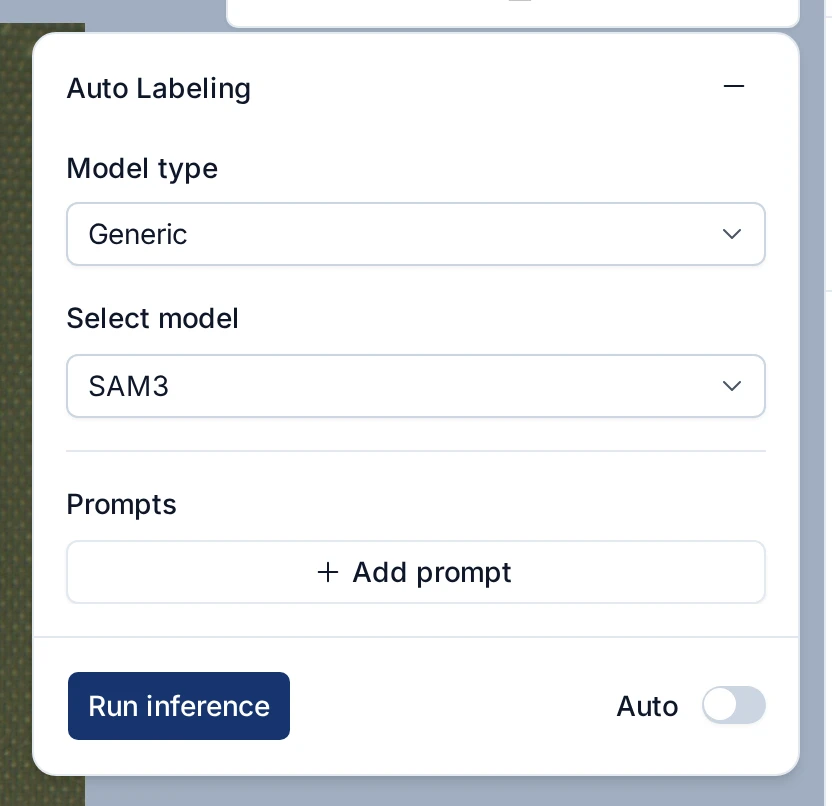
9. Choose the assistant
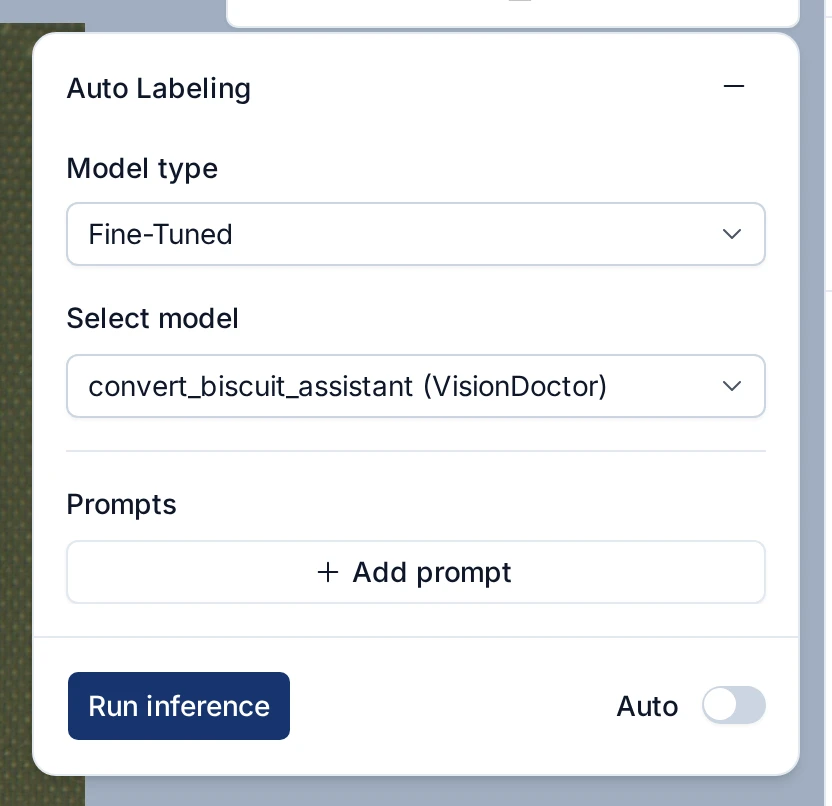
«Model type» → «Fine-Tuned» lists the labeling assistants of the project, those of other datasets too. Choose yours in «Select model».
10. Tell it which tag to draw
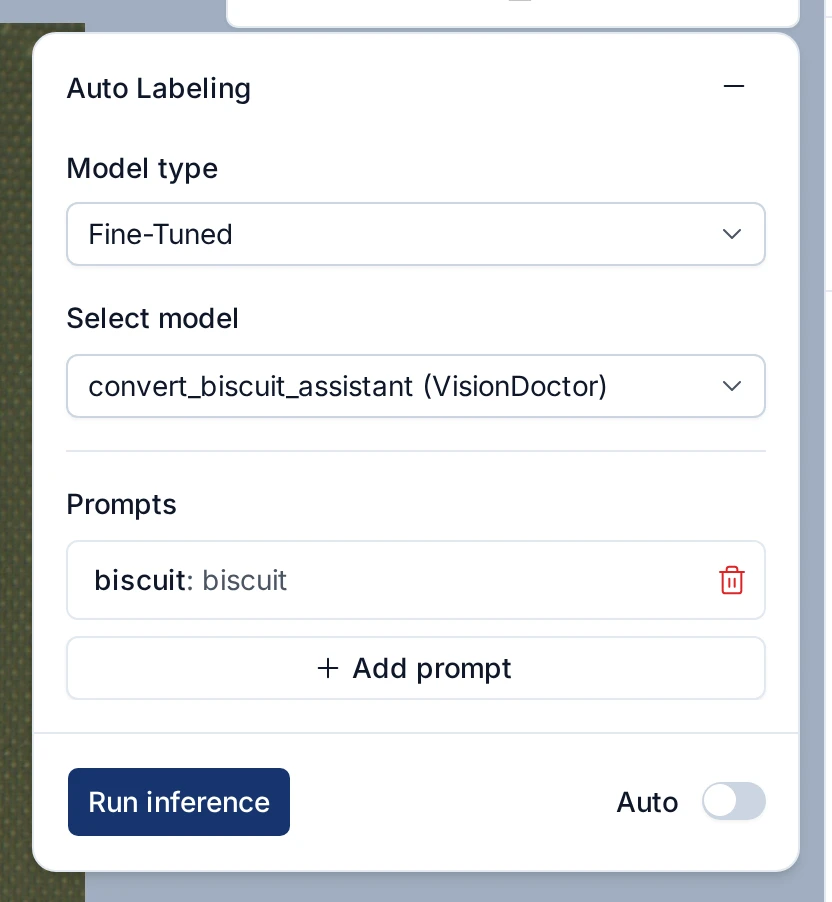
Click «Add prompt» and choose the tag the boxes get. The prompt is written for you with the name of the tag, which is what the assistant learned. Click «Apply».
11. Let it label the pack
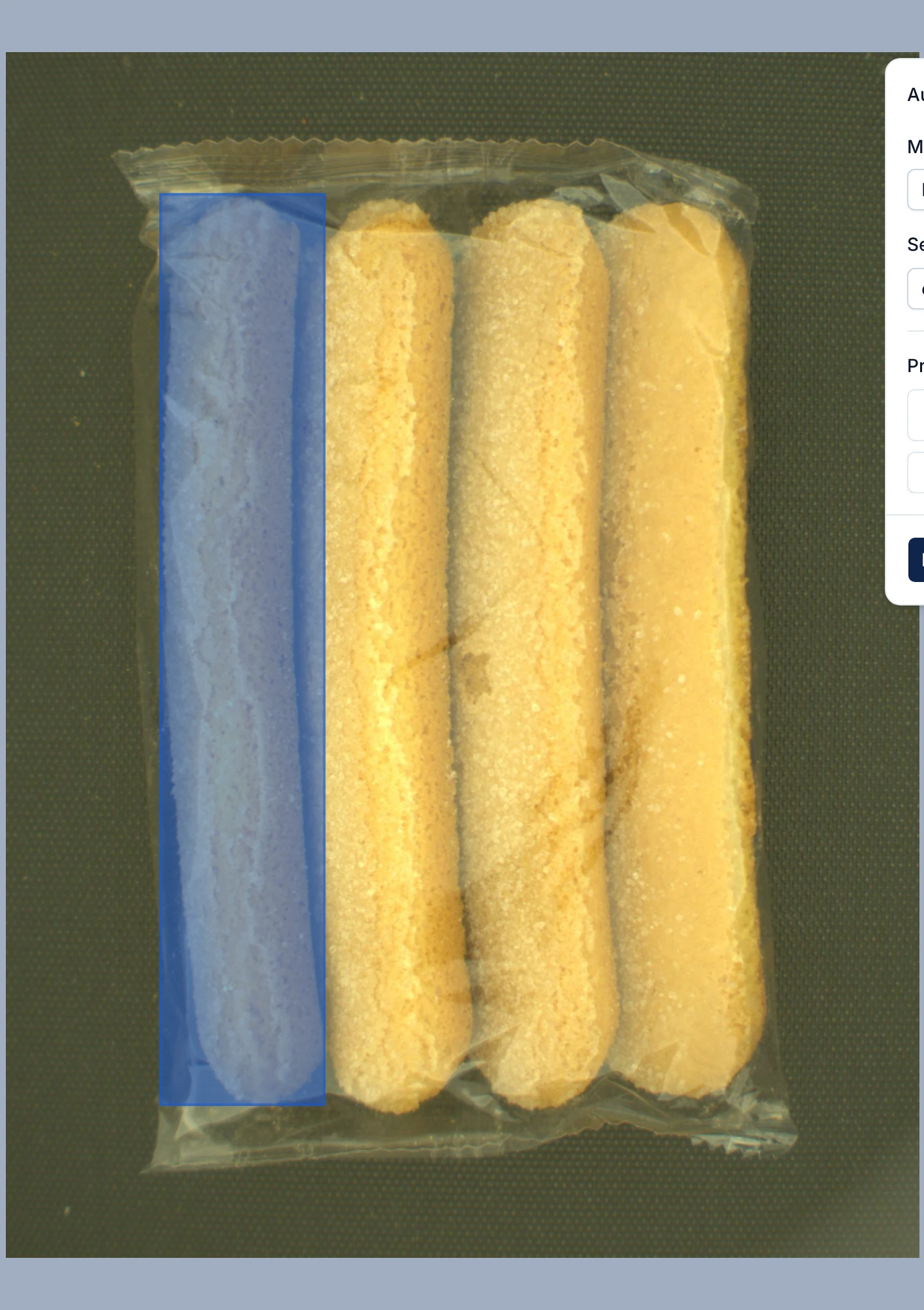
Click «Run inference». The first time, the assistant starts in the cloud and loads, which takes a minute or two; the panel shows the progress. Then it draws its boxes on the image.
12. Check what it found
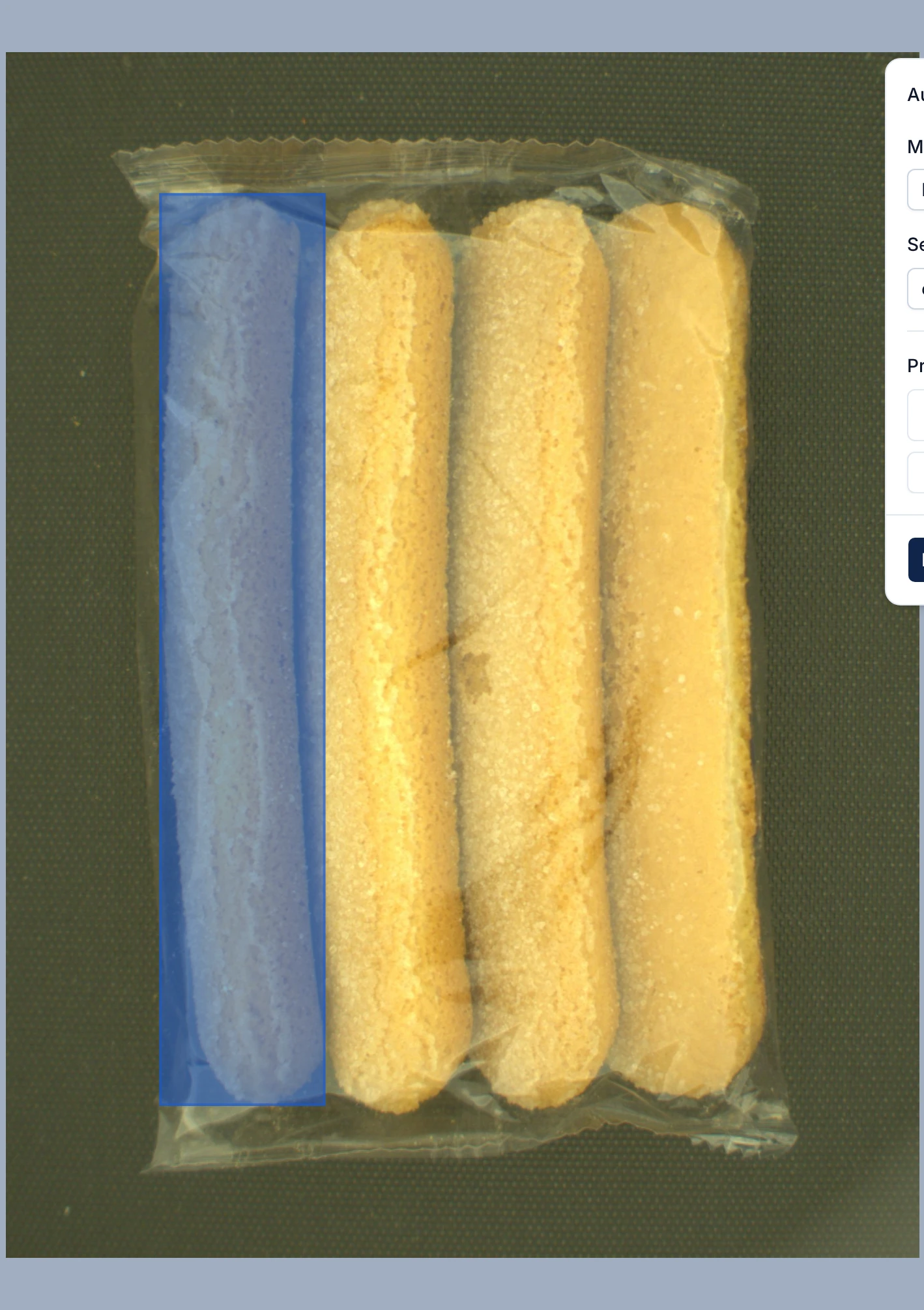
The boxes it draws are labels of the image straight away, in «Labels». Here it boxed 1 of the four biscuits: an assistant trained on six packs has seen little. Correct and complete its boxes with the labeling tools, and «Auto» lets it go through the next images on its own, as explained in Label automatically with a text prompt.
An assistant gets better with what it learns from: label a few dozen images, and train it again when you have labeled more.
When an assistant pays off
- Your objects are not everyday objects. A general model finds «a biscuit» or «a bottle»; an assistant finds your part, your defect, your label.
- Many images are left. Training costs tokens and about half an hour: it pays off when there are many more images to label than the ones you have done.
- Check what it draws. An assistant learns from your boxes, mistakes included, and every image it labels still needs a look.
Next steps
- Label automatically with a text prompt
- Review and validate annotations
- Choose the fastest way to label
Recorded on Rosepetal release 1.8.15.